
What is SolTradingBot? Main features and how to use it
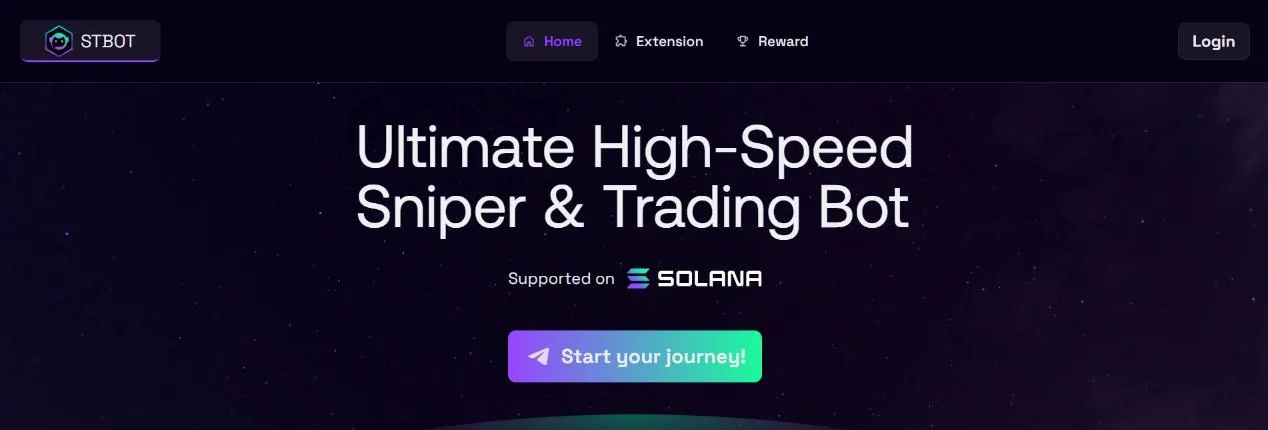
SolTradingBot (STBOT, soltradingbot.com) is a Telegram trading bot built for Solana: paste a token address to buy or sell, snipe new tokens, copy wallets, set limits and DCA. Since October 27, 2026 the bot also runs on Robinhood, BNB Chain, Ethereum, Base and Monad, and it comes with a Chrome extension and a web multi-wallet tool.
The bot's main menu
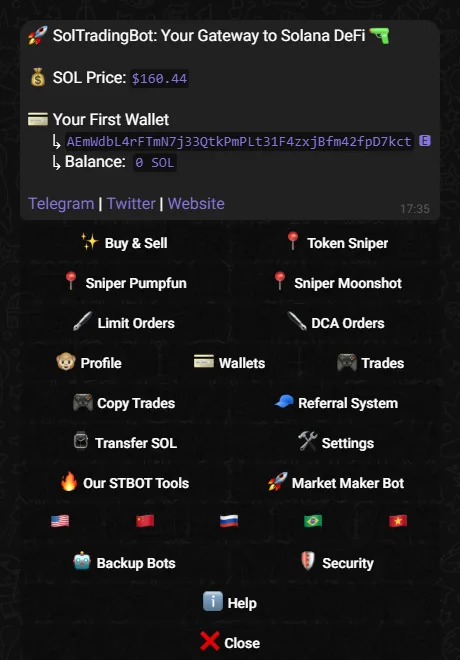
Open @SolTradingBot and type /start; the bot creates your first wallet and shows the main menu. The buttons are Buy & Sell, Token Sniper, Sniper Pumpfun, Sniper Moonshot, Limit Orders, DCA Orders, Profile, Wallets, Trades, Copy Trades, Referral System, Transfer SOL, Settings, Our STBOT Tools, Market Maker Bot, Backup Bots, Security and Help, plus a row of flags to change the language.
Most sections have a shortcut command: /wallet, /profile, /settings, /limitorders, /dcaorders, /referral, /cashback. The trading features are explained in the sections below; the remaining items:
- TradesThe history of your filled orders.
- Our STBOT ToolsLinks to the tools outside the bot: the Chrome Extension, the web multi-wallet tool, Signal Bot and the token alert channels.
- Market Maker BotSTBOT's market-making service for token projects, not for personal trading.
- Backup BotsA list of backup bots that share your wallets and settings; switch to one when the main bot is overloaded.
From Solana to six chains
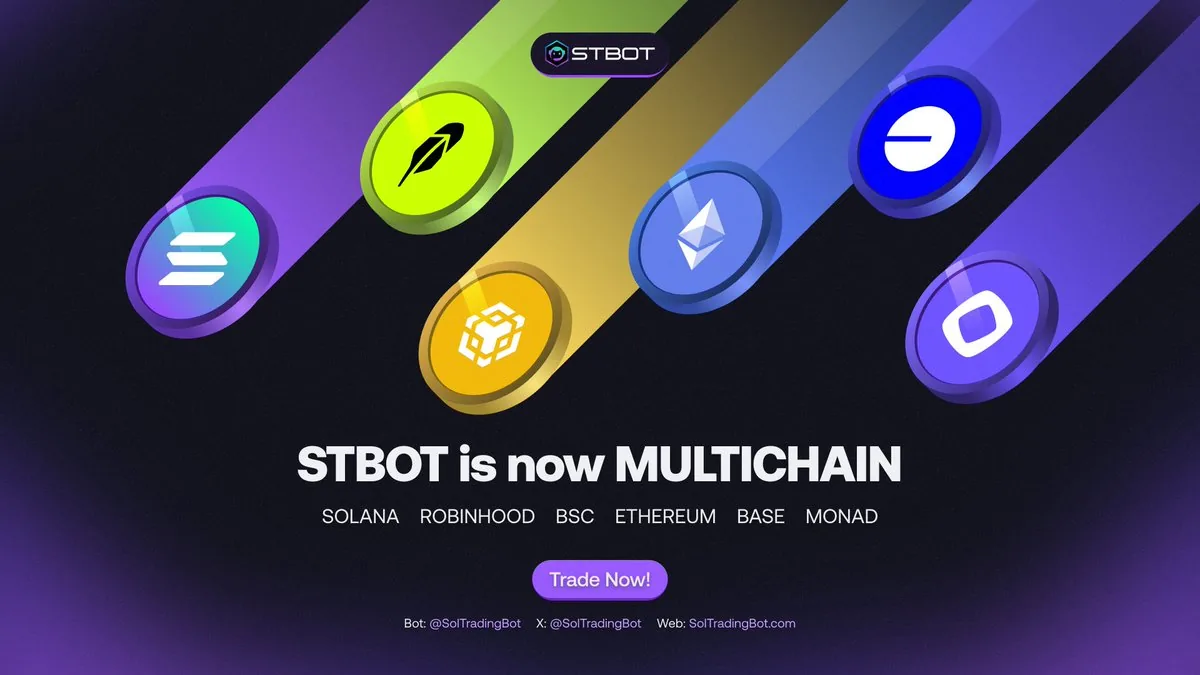
STBOT was built for Solana from the start, supporting Raydium (including CLMM and LaunchLab), Orca, Jupiter, Pump.fun, PumpSwap, Moonshot, Meteora, boop.fun and newer launchpads such as Bags, Heaven and Sugar. On October 27, 2026 (Vietnam time) STBOT announced it was going multichain: the same bot can now trade on Solana, Robinhood, BNB Chain, Ethereum, Base and Monad.
Trading: just paste the token address
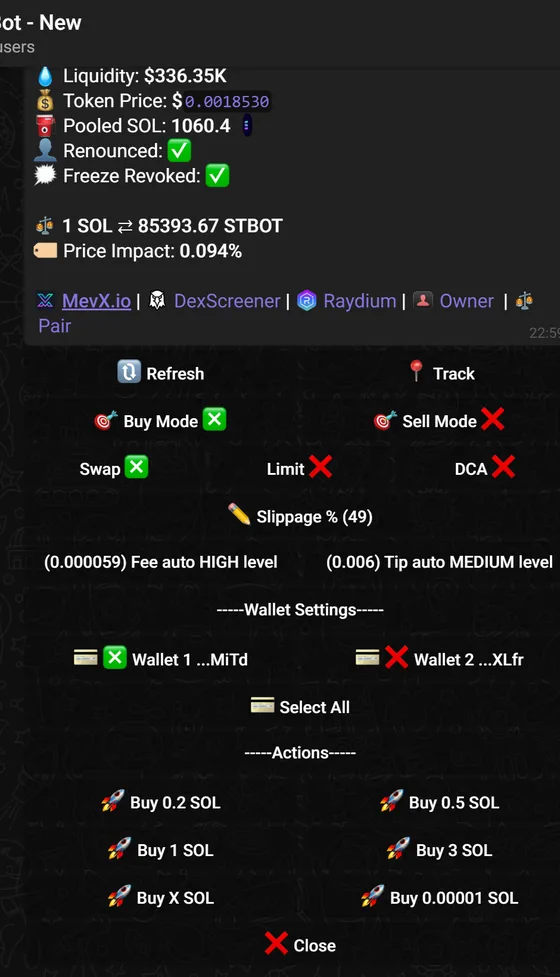
Paste a token address into the bot and it returns an info panel: liquidity, price, the amount of SOL in the pool, whether ownership is renounced and freeze authority revoked, price impact, plus chart links (MevX, DEX Screener), the pool and the token owner's wallet.
Below are the buttons: Buy Mode / Sell Mode, order type Swap, Limit or DCA, Slippage, fee level and automatic tip, wallet choice in Wallet Settings (Select All to trade on every wallet at once), then click Buy 0.2 SOL, Buy 1 SOL or Buy X SOL. To sell, choose a % of the token.
- One-click sell allIn /profile, choose a wallet, then Sell All to sell every token in it; Burn All to burn every token in the wallet.
- Random Buy/SellSince June 20, 2026: set a minimum and maximum, and each buy or sell uses a random amount within that range.
- PnL and chartAt the bottom of the token panel is PNL Display (profit and loss %, cost, current value); a pinned message keeps the PnL of tokens you've traded. Turn on Preview Chart to see the chart before you click buy.
Copy trade: automatically follow other wallets
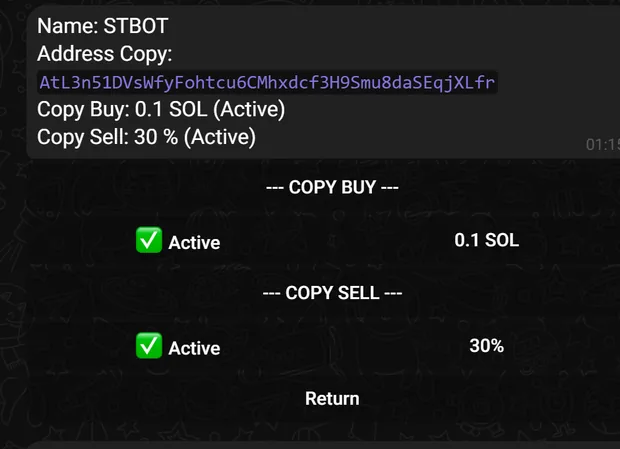
Click Copy Trades, choose which of your wallets will copy, click Add wallet, give the source wallet a short name (up to 8 letters or digits) and paste the address of the wallet you want to copy.
Then turn on Copy Buy and enter the SOL amount for each copied buy, and turn on Copy Sell and enter the % of tokens to sell when the source wallet sells. Each part switches on and off separately; to remove a source wallet, choose Delete and confirm.
Sniper: buy the moment a token launches
- Token SniperPaste the address of a token that hasn't opened for trading yet, set slippage, tip and priority fee, and choose a wallet. The bot pins a pending order, buys as soon as the token opens, and tells you whether it worked.
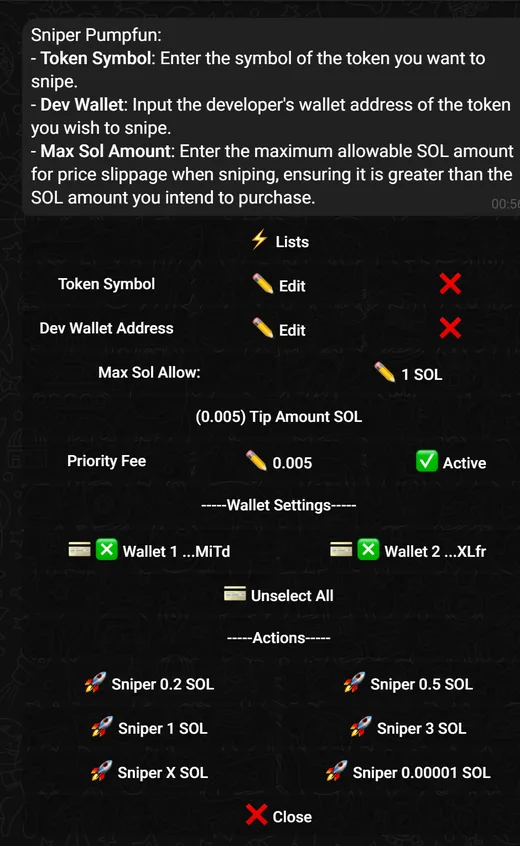
- Sniper Pumpfun, MoonshotEnter the ticker and dev wallet of a token about to launch on Pump.fun or Moonshot, the maximum SOL you'll accept, tip, priority fee, wallet and SOL amount. For LaunchLab use the /sniperlaunchlab command.
- Sell SniperIf you hold a token on Pump.fun, preset the % you want to sell, and the bot sells the moment the token leaves the bonding curve for a DEX (the STBOT docs were written when that was Raydium; now it's PumpSwap).
Limit, DCA, Auto Buy and Auto Sell
- LimitBuy Mode → Limit: buy when the price drops by exactly the % you set. Sell Mode → Limit: set a take profit % and a stop loss %. Orders have an expiry; view and cancel them in /limitorders.
- DCASplit a buy or sell by interval, total duration and the lowest and highest price allowed to fill. Manage them in /dcaorders.
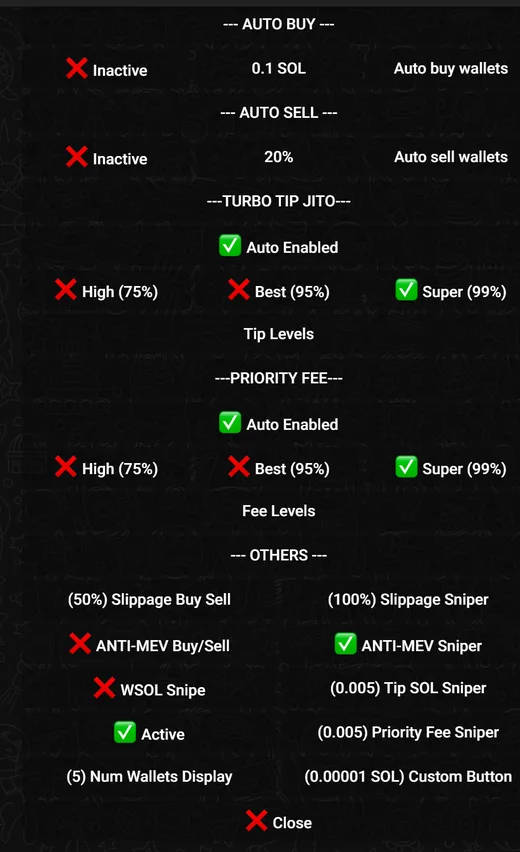
- Auto BuyTurn it on in /settings and set the SOL amount and wallet: from then on, any token address you paste is bought automatically.
- Auto SellTwo modes, only one can be on: CA Sell automatically sells a fixed % when you paste a token address; Order Sell creates a list of sell rules by TP/SL %, after a set time, or when the token moves to a DEX or the dev sells, with slippage and expiry. It applies to both swap and limit orders, and the total sell % can't exceed 100%.
Settings: tip, priority fee and anti-MEV
/settings gathers every setting: Auto Buy, Auto Sell, Turbo Tip Jito and Priority Fee (leave it on auto or choose High 75%, Best 95%, Super 99%), separate slippage for trading and for the sniper, separate tip and fee for the sniper, and WSOL Snipe.
Anti-MEV Buy/Sell and Anti-MEV Sniper switch on separately to keep sandwich bots off your orders. You also set the SOL amount for each buy button, the % for each sell button and how many wallets show on the trading screen (Num Wallets Display).
Wallets, multi-wallet and web tools
In /wallet: Generate New Wallet creates one wallet, Generate 5 Wallets or Generate 10 Wallets creates several at once (with private keys for you to save), Connect Wallet imports an existing wallet by private key, Edit replaces a wallet, and you can delete wallets. Transfer SOL withdraws SOL to an outside wallet (enter the address and amount), and Transfer All SOL To One sweeps SOL from every wallet into one.
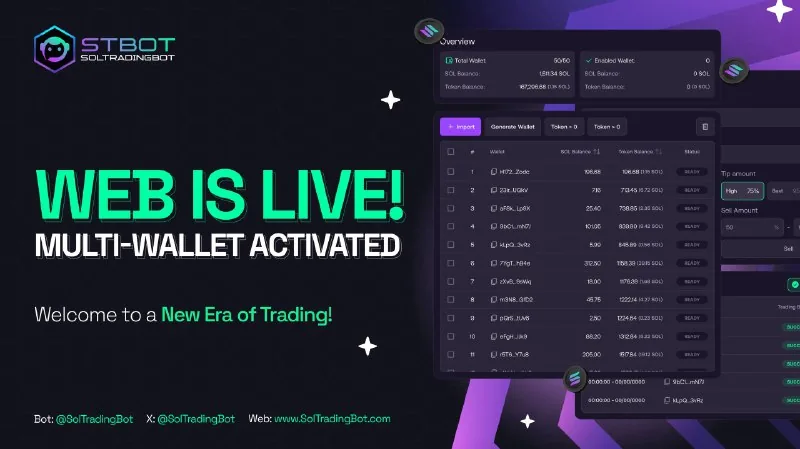
/profile shows the tokens held in each wallet: balance, bought, sold, value and PnL. Since July 30, 2025 STBOT also has a web version for multi-wallet use (soltradingbot.com/tools), a good fit for people managing many wallets, such as snipers.
Token Alert, Search and Pump.fun fee claim
- /alertSince May 21, 2026: create alerts for a token, and the bot messages you when your condition is met.
- /searchSince May 23, 2026: search tokens by name or ticker right in Telegram and trade them straight away.
- /pumpfuncashbackSince March 10, 2026: view and claim the Pump.fun fees waiting in your wallets.
Chrome Extension: trade right on other sites
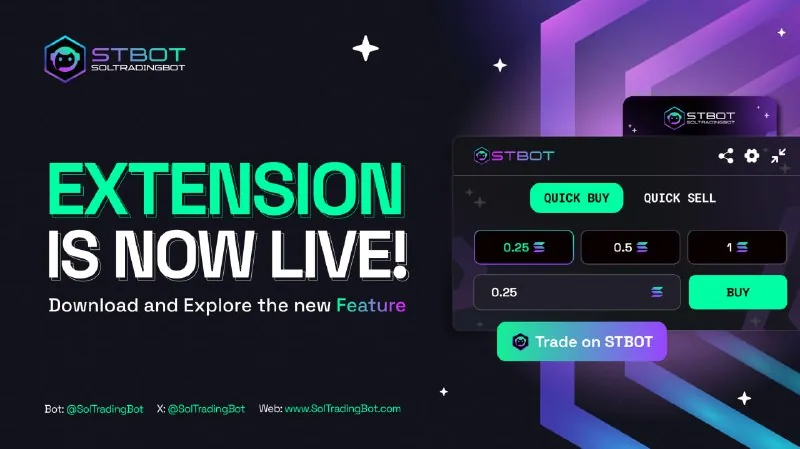
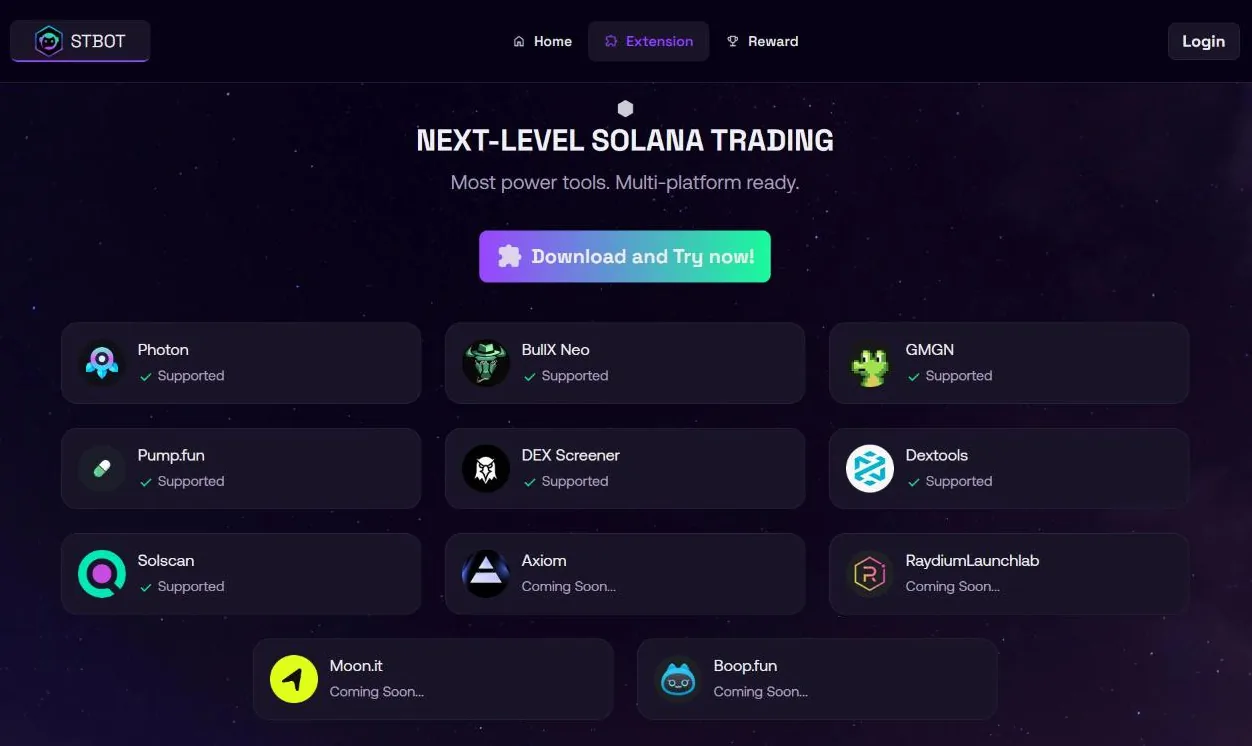
STBOT Extension (released May 20, 2025) adds a trading panel to Photon, BullX Neo, GMGN, Pump.fun, DEXTools, DEX Screener and Solscan, and a Buy button next to token addresses on Telegram Web. To log in, click Login, and the extension takes you to the Telegram bot to verify.
The preset panel has Quick Buy (SOL amount buttons), Quick Sell (by %, sell your initial investment, or by SOL amount), multi-wallet selection and quick tweaks for tip, slippage, fee and Anti-MEV. The Trade on SolTradingBot button opens that token straight in the bot.
Signal Bot and new token channels
Since July 16, 2026 STBOT has a Signal Bot (@stbotsignalbot): add it to your Telegram group or channel, and it scans Solana on-chain and posts noteworthy tokens, with a referral link you set yourself so you earn commission when members trade.
STBOT also runs channels that announce new tokens on Solana: Solana New Listing Bot, Solana New Token Bot and Solana New Pumpfun Bot.
Commission, cashback and Claim your SOL
- Referral 30%Go to Referral System (/referral) to get your link; you earn 30% commission on every trade by people you invite, click Create Claim Request to withdraw, and review it in Claim History.
- Cashback 20%Since September 9, 2025, every order (swap, snipe, limit) returns 20% of the fee you pay to your cashback balance, shown in USD; check it with the Cashback button (/cashback).
- Claim your SOLSince January 18, 2026: the /claimyoursol command sends a request to get back SOL from fees based on your total trading volume.
Fees and safety
STBOT's docs don't publish the fee, only the 20% fee cashback; independent reviews put STBOT at 1% per buy and sell order, so check the fee shown in the bot before trading. On top of the bot fee you pay network fees, the Jito tip and the priority fee you set yourself; STBOT's terms state clearly that users cover gas fees.
- Turn on Security: link Google Authenticator (2FA), then set a password (at least 6 characters, no spaces). After that, transfers, exporting private keys and deleting wallets all require the password; changing or removing the password needs the 2FA code.
- Only use the main bot @SolTradingBot, the backup bot @SolanaTradingBot and the regional bots (Europe, Asia, Americas) listed in the docs. STBOT advises not to search for the bot name on Telegram but to use the official links.
- Save the private keys of the wallets the bot creates. Connect Wallet asks you to paste a private key, so only import a wallet set aside for the bot, never your main wallet.
- The bot wallet signs trades for you: keep only the funds you plan to trade with, and move profits to your own wallet.
Get started with SolTradingBot
- Open SolTradingBotGo through our link, at no extra cost.soltradingbot.tradewizbot.pro
- Type /start, save your walletThe bot creates your first wallet. Go to /wallet to get the private key and save it, then turn on 2FA and a password in Security.
- Deposit a little, start smallDeposit SOL (or the coin of the chain you use, on the right network) into the wallet, adjust slippage and Anti-MEV in /settings, then try a small buy before adding more funds.
Through our referral link, at no extra cost.
Screenshots taken on October 28, 2026; the interface may change. Not investment advice: memecoins are high-risk, only use money you can afford to lose.