
What is BONKbot? Main features and how to use it
BONKbot is one of the longest-running Telegram bots for trading Solana tokens: paste a token address and you buy or sell in seconds. It comes with Telemetry, a web terminal that shares your BONKbot account, and Nighthawk, a separate sniping bot for approved users.
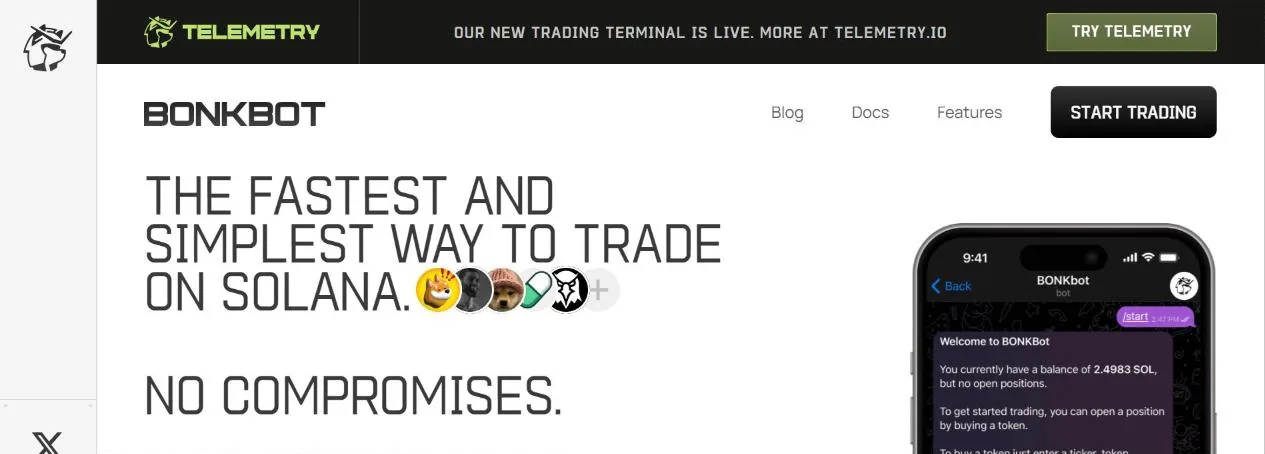
The BONKbot main menu
Search for @bonkbot_bot on Telegram and click Start: the bot instantly creates a Solana wallet for you, and the address appears in the first message. Deposit SOL into that wallet and you can trade, with no wallet connection or signing each order.
Type /start to open the menu. At the top is an overview of the tokens you hold (PnL, value, market cap, price change). Below are the buttons Buy, Sell & Manage, Limit Orders, DCA Orders, Wallet, Settings, Alerts, Refer Friends, Help, Pin and Refresh (updates balances and prices).
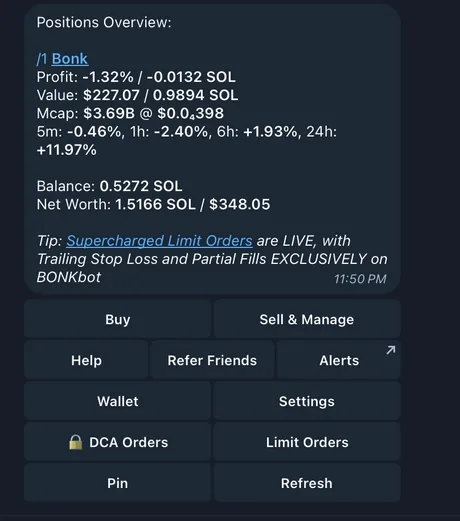
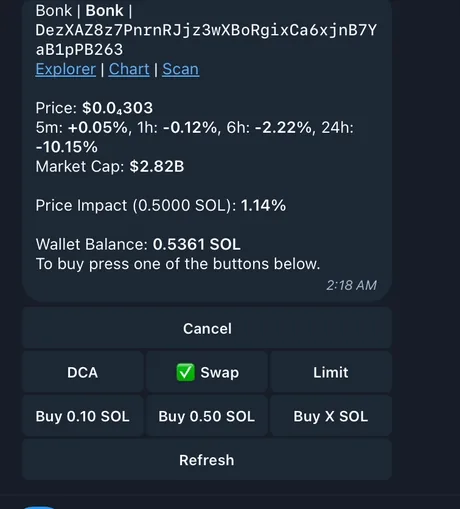
Buying tokens: just paste the address
Paste a token address or a link from Pump.fun, DEX Screener, Birdeye or Meteora into the chat (or click Buy and send the address or token name). BONKbot shows the price, change from 5 minutes to 24 hours, market cap, price impact for the amount you plan to buy and your wallet balance.
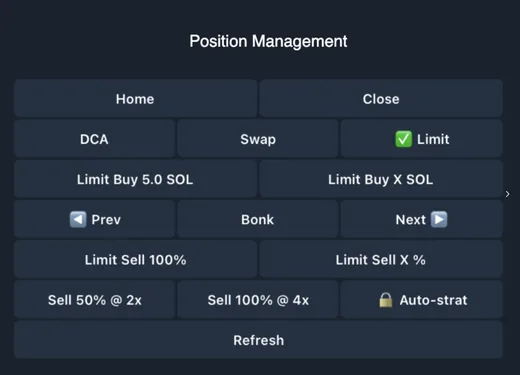
There are three modes in the top row: Swap (buy now), Limit (pending order) and DCA (split the order). Click a preset amount such as 0.10 SOL or 0.50 SOL, or Buy X SOL to enter any amount. Orders go through Jupiter combined with BONKbot's own routing.
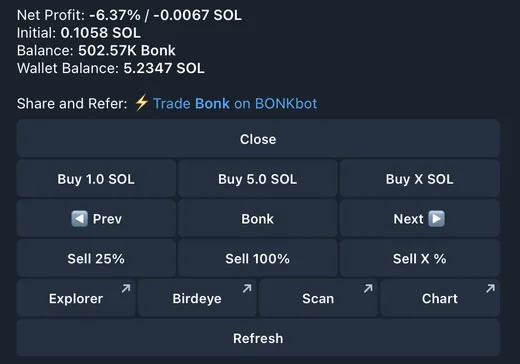
Sell & Manage: track PnL and sell
Each position shows PnL in % and in SOL, value, market cap, price change, the amount you put in and Net Profit (profit after price impact, DEX fees and BONKbot's 1% fee). Use the arrows to move between tokens, click Sell 25%, Sell 100% or Sell X %, or buy more right here.
There are quick links to Solscan, Birdeye and the chart, plus a share link with your referral code. In the sell button settings there is Sell Initial: sell exactly your initial investment and let the rest ride.
Limit orders, DCA and Auto-Strat
- Limit BuyBuy Dip buys when the price drops to your level, Buy Breakout buys when it rises above it. Choose Limit on the buy screen, enter the SOL amount and then the trigger level.
- Limit SellTake Profit sells when the price rises, Stop Loss sells when it falls. Trailing Stop Loss moves the stop with each new high, for example selling 50% when market cap falls to 0.8x the latest peak.
- How to enter levelsMarket cap (150K, 2M, 1B), USD price, a multiple (0.8x, 2x) or a % change (+5%, -5%).
- DCAChoose the total amount, number of orders and interval: 0.5 SOL split into 5 orders every 10 minutes means 0.1 SOL each over 50 minutes. Track and cancel in DCA Orders.
Settings: Auto Buy, MEV protection, speed
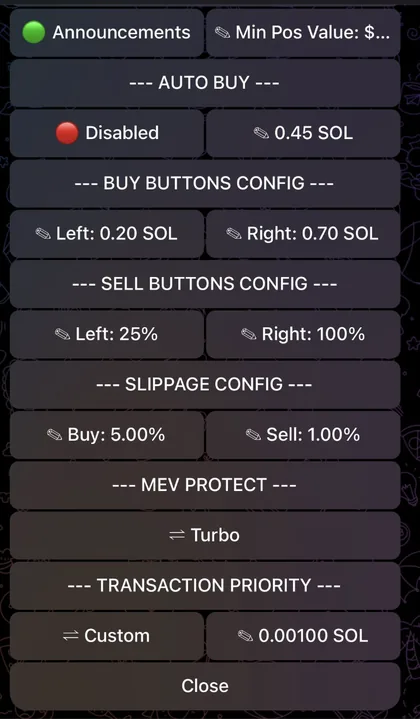
- Auto BuyWhen on, pasting a token address makes the bot buy your set SOL amount right away, without asking. The main BONKbot has no sniper; this is the fastest way to buy in the bot.
- MEV ProtectWorks with Jito. Turbo: goes through Jito when that is the fastest route, otherwise sends normally without protection. Secure: always protected even if slower; raise the tip to go faster.
- Transaction PriorityMedium, High, Very High or a custom priority fee.
- Buttons and slippageChange the preset buy and sell amounts; set separate slippage for buys and sells, and a price impact limit.
- Sell ProtectionAsks for confirmation before every sell, so you don't sell by mistake.
Nighthawk: the companion sniping bot
Nighthawk (@nighthawk_bonkbot) is a separate sniping bot that shares a wallet with your BONKbot account through the wallet address. It requires approval (whitelist): send your Telegram ID to your BONKbot account manager, or ask on Discord if you were referred. You deposit SOL into both the Nighthawk wallet (for sniping) and the BONKbot wallet (to pay trading fees afterwards).
- How to snipePaste a Pump.fun token address or a Meteora pool ID into Nighthawk, then choose manual settings or a saved preset.
- PrecisionBuys only when market cap is below your level; if the snipe misses, you only lose a fixed amount you chose. Good for beginners.
- SpeedBuys at any market cap; the higher the fee and tip, the earlier you get in. This fee is lost even if the buy doesn't happen.
- After a hitSniped tokens show up in BONKbot through a deeplink so you can sell right away. View and cancel pending snipes with /start.
Telemetry: the web terminal
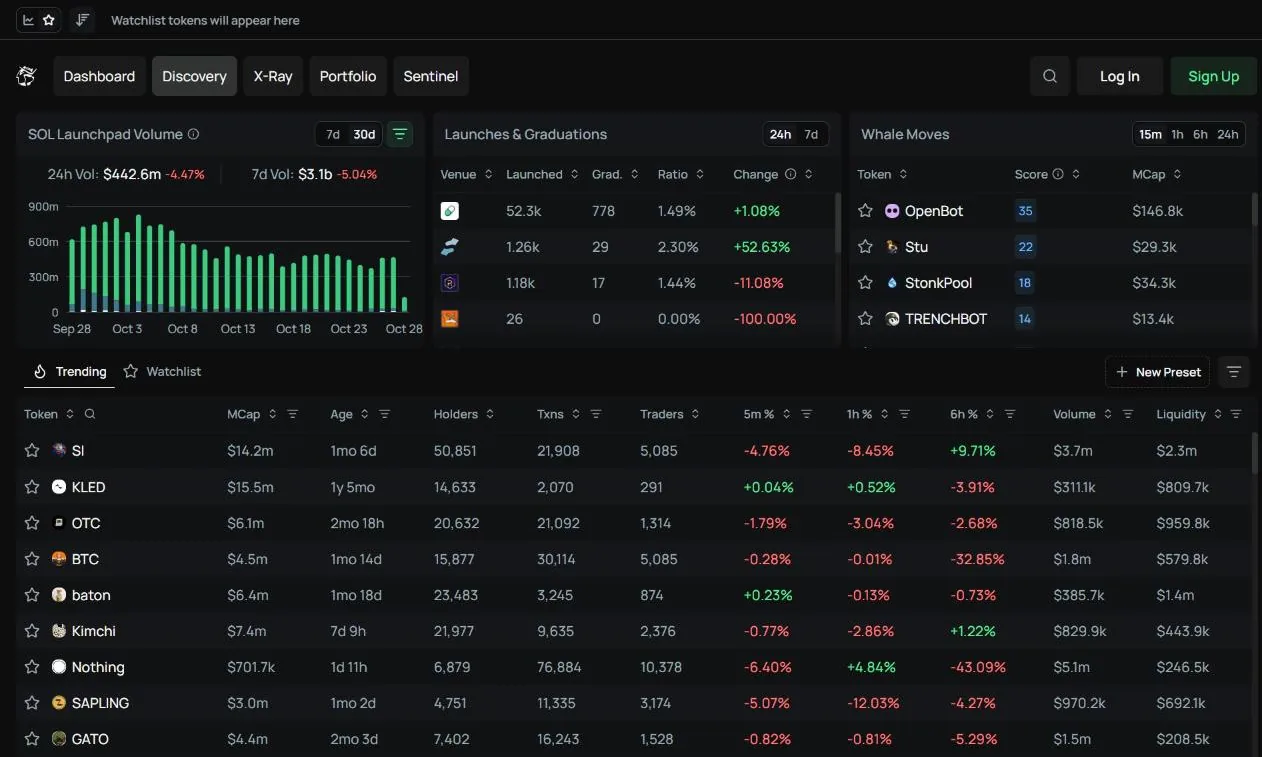
Telemetry (telemetry.io) is BONKbot's web trading terminal. It shares your BONKbot account and wallet and works on both desktop and mobile. The default Discovery page ranks tokens with momentum using Telemetry's algorithm, with market cap, age, holder count, price change, liquidity, volume and filters for dev % and top 10 holdings.
The widgets alongside include Whale Moves (tokens big wallets are buying, counting only trades of 25,000 USD or more), Launches & Graduations (how many tokens each launchpad launched and how many reached a DEX) and SOL Launchpad Volume. The search box at the top (shortcut /) finds tokens by name or address.
Dashboard: one screen made of widgets
Dashboard is the first item in the Telemetry menu (Dashboard, Discovery, X-Ray, Portfolio, Sentinel) and requires login. It is a screen built from many widgets; click Customize to choose and arrange widgets the way you follow the market.
In March 2026 BONKbot added three widgets to the Dashboard:
- Community TrackerRanks tokens' X communities by member growth and post activity, so you can see which communities are taking off before the price moves.
- Heavy HittersA feed of large trades on Solana tokens: which token, which wallet, buy or sell, how much, how long ago.
- Flow ScannerWhich tokens money is flowing into: Net Flow (buy volume minus sell volume), buy volume, sell volume and RVOL (volume relative to normal), over timeframes from 5 minutes to 24 hours.
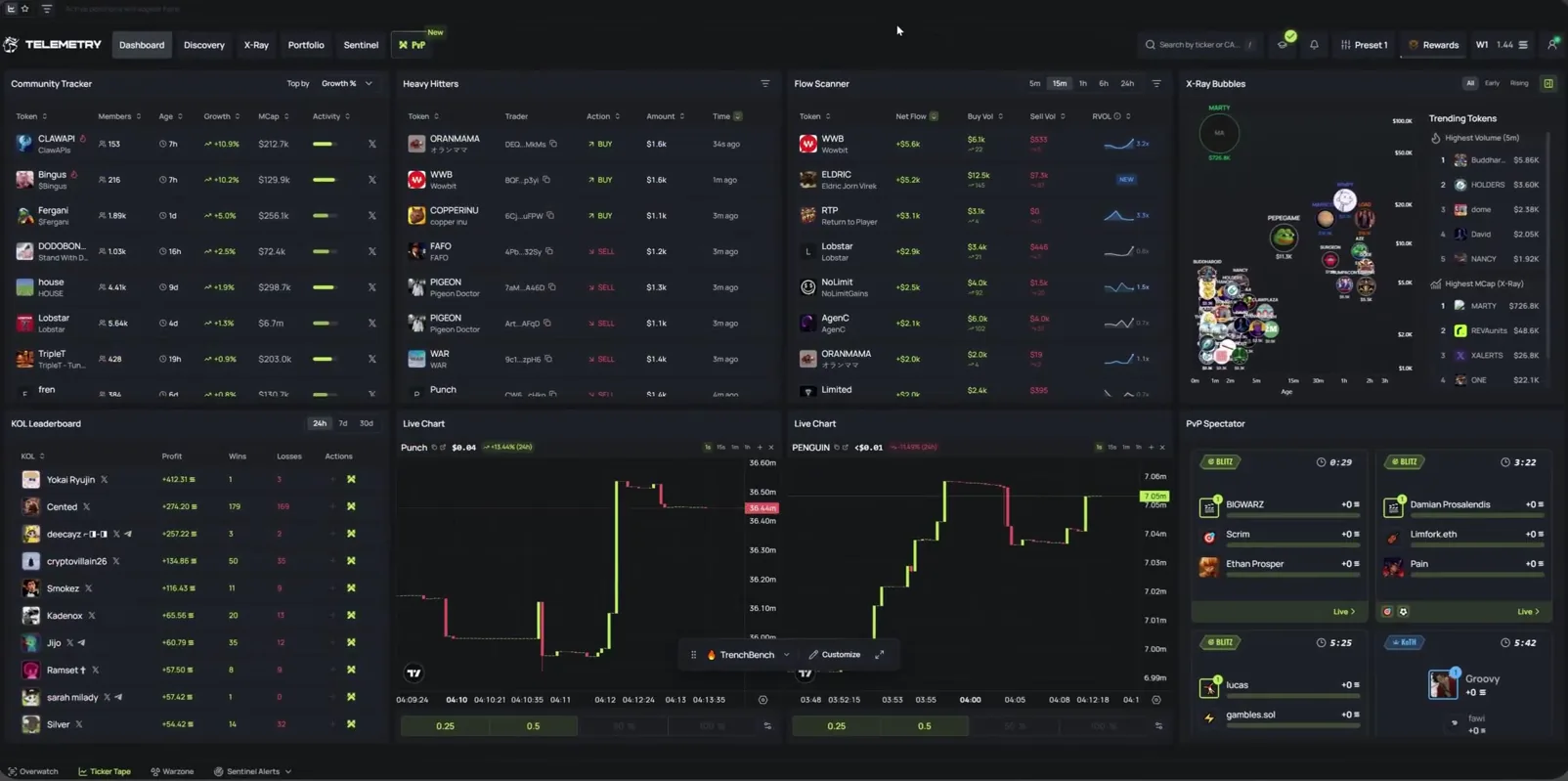
That video also shows the widgets KOL Leaderboard (KOLs' profit and wins and losses over 24h, 7d, 30d), Live Chart (a small chart with a quick-buy button) and X-Ray Bubbles. Since September 11, 2026 the Dashboard also has Rewind: pick 1h, 6h or 24h to see what happened while you were away, which tokens ran, which dumped and which held, read an AI-written market summary, and see whether the wallets you track bought, sold or are still holding.
X-Ray: new tokens by stage
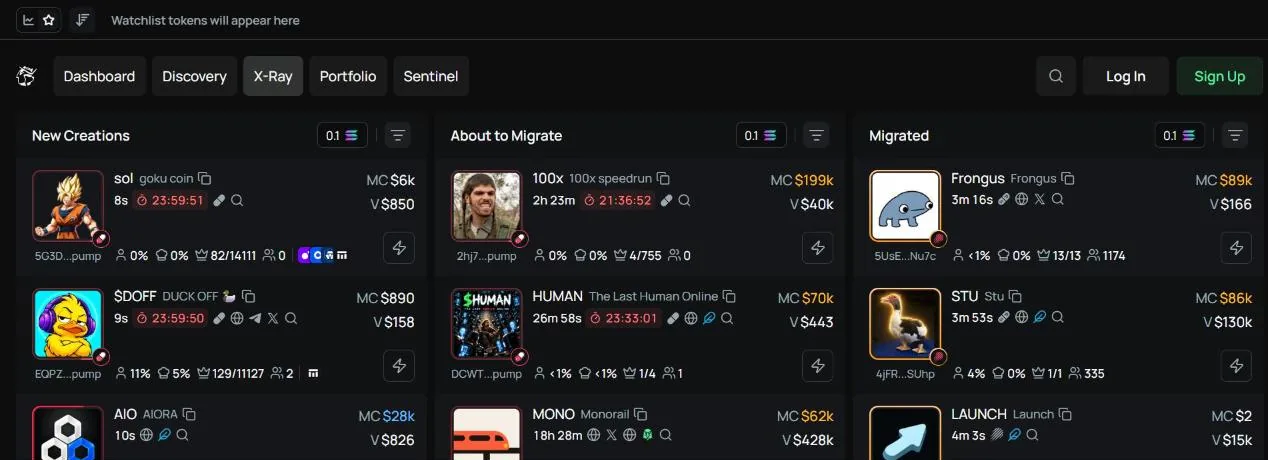
X-Ray tracks tokens on Solana launchpads in three columns: New Creations (just created), About to Migrate (about to leave the bonding curve) and Migrated (already on a DEX). Each column has its own filters, and hovering over a column pauses updates so you can keep up; X-Ray opens full page or sits in the sidebar while you trade.
The filters go deep: launchpad (Pump.fun, Moonit, LaunchLab, LetsBONK, Boop, Believe…), the funding source of the dev wallet (over 80 exchanges, bridges and betting sites), the dev wallet's assets, dev holdings %, the average value of the top 10 wallets, keywords, and safety flags (mint and freeze authority revoked, LP burned, DEX Screener paid).
Wallet Tracker: follow wallets, no automatic copying
BONKbot doesn't have automatic copy trading yet. Instead, Wallet Tracker on Telemetry shows the trades of wallets you track as soon as they hit the chain. You can tag them with an emoji or name so you recognize them on every chart, and get a sound alert when a wallet buys or sells.
- Quick wallet importPaste a list of wallets, import the top 100 KOL wallets from KOLscan and high-profit wallets from atm.day, or import a file exported from another wallet tracker such as Axiom.
- SummaryFor each token: which wallets are buying, whether they're in profit, and what % they still hold (have they dumped yet).
- ConfluenceAlerts you when several tracked wallets enter the same token.
- Live TradesA real-time trade feed; click to open the transaction on Solscan or open the token chart. The [ key toggles the Wallet Tracker bar.
Terminal, Turbo Mode and Portfolio
The Telemetry trading page uses a TradingView chart that marks your average entry, your trades, the dev's trades and those of tracked wallets. The Token Info panel shows the dev wallet, its funding source, whether the launch was bundled, top 10 and dev holdings %, mint and freeze authority, and whether LP is burned; below it are tabs for trades, holders, top traders, pending orders and history.
- Turbo Mode4 or 8 instant buy and sell buttons, no confirmation. Hold Space to use hotkeys: Q W E R to buy, A S D F to sell. Switch quickly between 4 presets P1–P4 (slippage, MEV protection, Jito tip).
- PortfolioOpen, closed and hidden positions, with amount invested, amount sold, realized and unrealized PnL, and a chart of each token's share.
- WalletTotal balance of all wallets, deposit by address or QR code. When we checked, the docs said web withdrawals were "coming soon".
Sentinel: set your filters, get alerted on matches
Sentinel (the last menu item, requires login) lets you build a token filter once and leave it running: any token that matches your conditions triggers an alert right away. BONKbot posted a video introducing Sentinel in March 2026.
The first time, you pick a ready-made template: Degen Mode (hunting high-risk tokens with tight filters), Alpha Picker (tokens with a social presence and healthy metrics) or IDGAF (balanced, with social verification). Or drag metrics yourself from the Select Alert Metrics column into a preset: top 10 holder %, LP burned %, holder count, bonding curve %, buy/sell ratio, price and volume change %, minimum transactions, market cap, liquidity, time since migration, token age, 24-hour volume and more. Enter a minimum and maximum for each metric, try it in Test Mode and then Save.
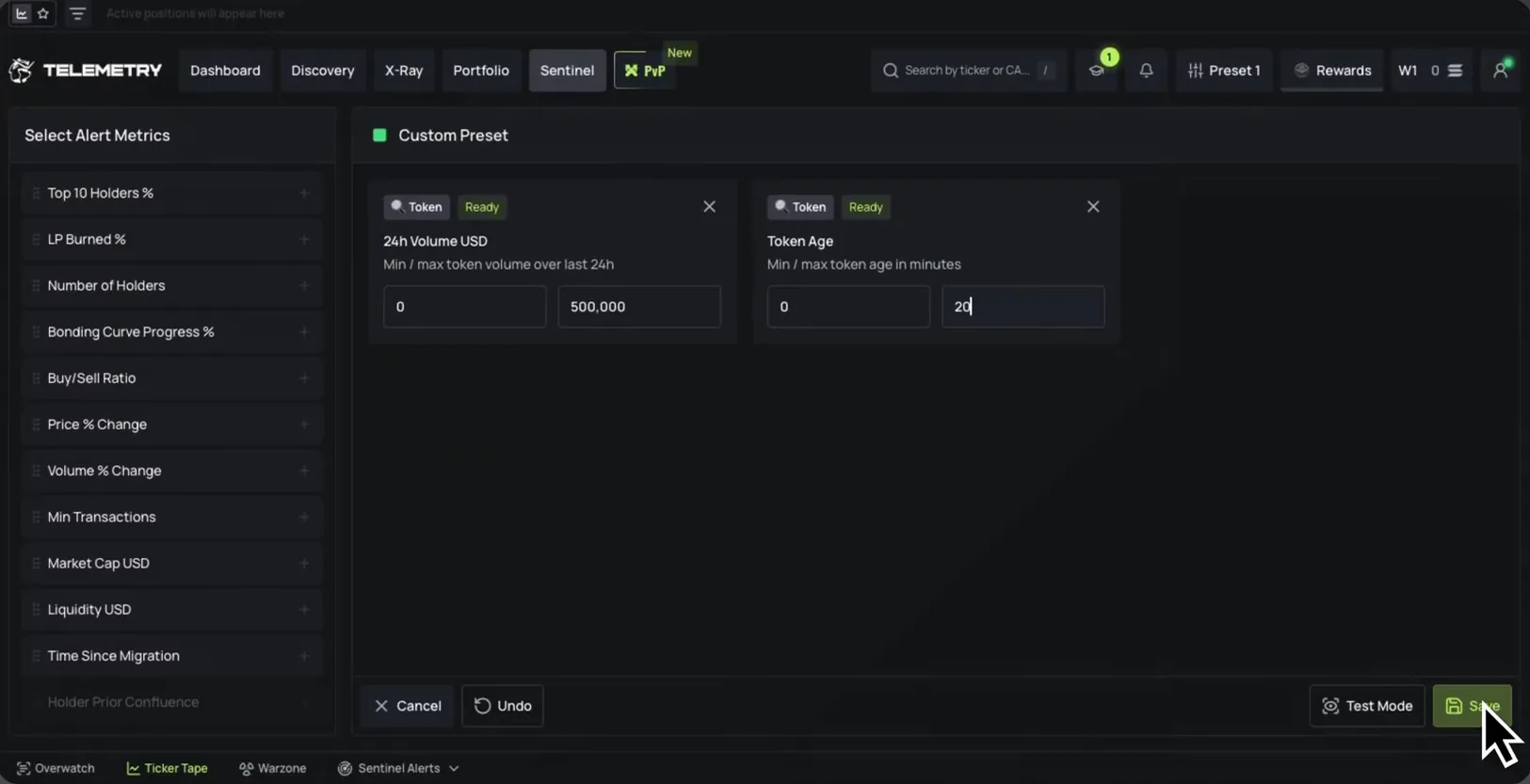
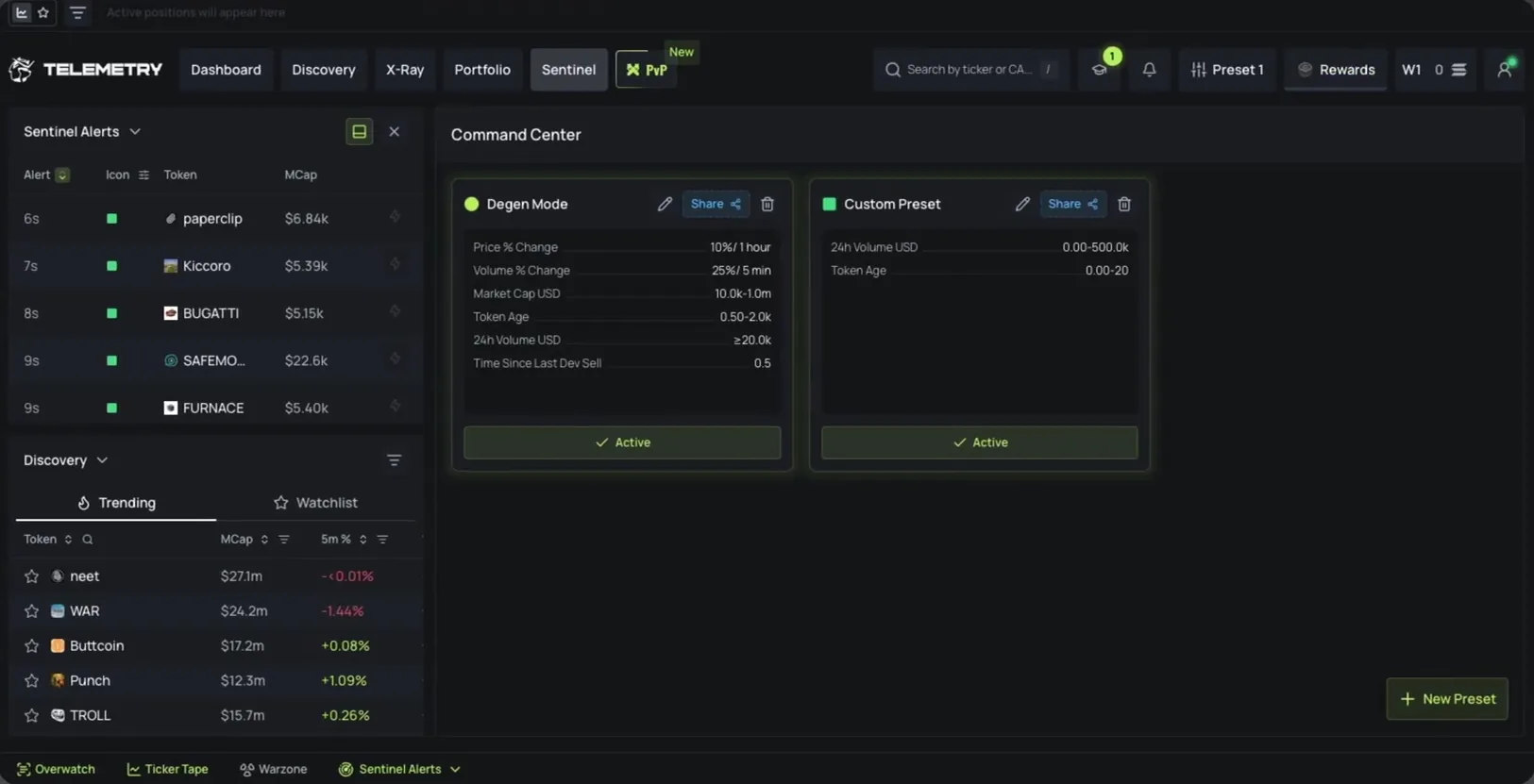
Saved presets live in the Command Center: turn them on with the Active button, edit, delete or Share them with others. Matching tokens appear in the Sentinel Alerts panel with the time and market cap, along with the notification "Sentinel has found a match"; you can open this panel from the bottom bar or place it in Overwatch, the modular sidebar described in the Toolbar section.
The bottom bar: Overwatch, Ticker Tape, price alerts, Kill Cam
Every Telemetry page has a toolbar at the bottom. When we checked, it had Overwatch, Ticker Tape, Sentinel Alerts, Price Alerts and Kill Cam; Sentinel Alerts, Price Alerts and Kill Cam require login.
- OverwatchA sidebar built from modules such as Whale Moves, Watchlist, Trending, Wallet Tracker, Portfolio and Sentinel Alerts. Drag, resize or remove modules as you like; the [ key toggles Overwatch.
- Ticker TapeA horizontal strip at the top of the page showing your open positions (Show Active Positions) or watchlist tokens (Show Watchlist). If you have several watchlists, switch between them right on the strip.
- Sentinel AlertsOpens the list of tokens that just matched your active Sentinel presets.
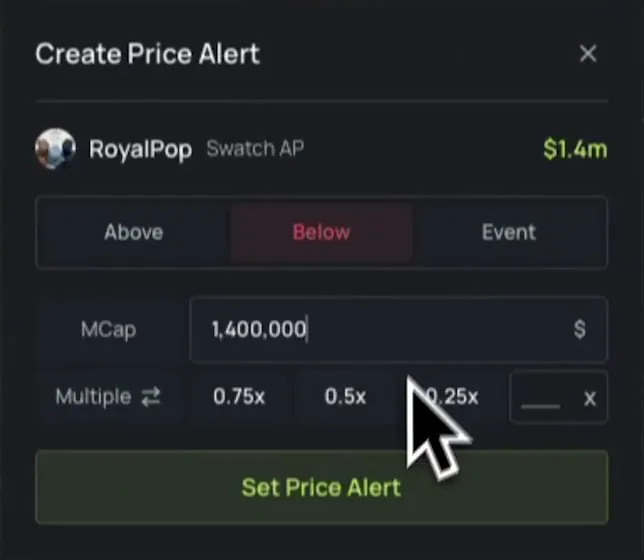
- Price AlertsOn a token page, click Set Alert to be notified when market cap goes above (Above) or below (Below) a level: enter a number or pick a multiple of 0.75x, 0.5x, 0.25x. The Event tab covers dev buys, dev sells and token migration. Alerts pop up while you're trading; the Price Alerts button opens your list of alerts to toggle or delete them.
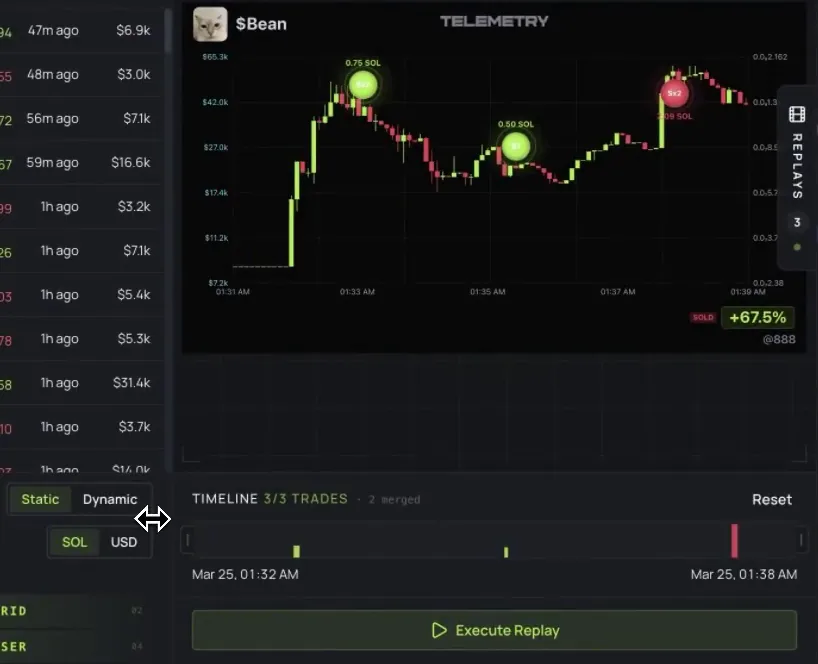
Kill Cam turns your trade into a PnL video: it replays the chart over the period you traded and marks your buy and sell points. Choose a Static or Dynamic camera, show PnL in SOL or USD, trim the highlight on the Timeline, click Execute Replay to render it, then download it as a GIF to share. Your renders are kept in My Replays.
BONKbot introduced Kill Cam in March 2026 and announced it was available on both BONKbot and Telemetry from August 25, 2026.
The BONKbot Token Alerts channel
The Alerts button leads to the BONKbot Token Alerts Telegram channel, split into several sections: New Pools (new tokens with a pool over 500 USD), Renounced (mint authority renounced), Burned (liquidity pool burned), Burned & Renounced, 30M Trending (top 10 biggest gainers over 30 minutes) and Fresh Wallets (newly created wallets that were just funded and bought a token). Each post has a button to buy right in BONKbot.
Cashback and referrals
Telemetry pays fee cashback in SOL by tier, from Iron at 5% up to Platinum III at 25%. Your tier is based on recent volume: your own volume across all BONKbot products (multiplied by 5) plus the Telemetry volume of the people you invited directly. Claim it right on Telemetry.
- Referrals on Telemetry30% of fees shared across 3 tiers: the people you invite, the people they invite and the next tier. Paid in SOL.
- Referrals on the Telegram bot30% of the referred user's fees in the first month, 20% in the second month, then 10% for life, paid straight to your wallet.
- Deep linkA link that opens BONKbot directly on a token; the integrator gets 5% of the fee on buys made through that link.
- Token IncineratorApproved token projects get their own referral link: 20% of new users' fees (10% for existing users) is used to buy and burn that token.
Fees and safety
BONKbot charges 1% per successful buy and sell order; setting up and using the bot is free. On top of that you pay Solana priority fees, and Jito tips when MEV protection is on. The cashback above lowers your effective fee.
BONKbot wallets don't store keys the usual way: a system called The Signer keeps private keys encrypted in a secure server environment, and BONKbot says its staff can't see them. Each transaction is signed only if it matches a pattern you have approved.
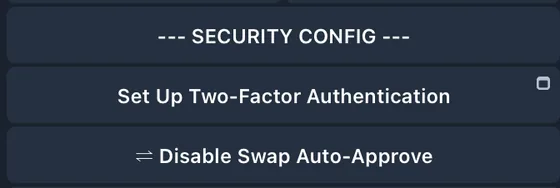
- Turn on 2FA in Settings → Security Config: withdrawing SOL and exporting the seed phrase then require a code. Turn off Swap Auto-Approve so every trade needs 2FA. Save your 2FA backup codes.
- Only use @bonkbot_bot and the official backup bots (Monza, Sonic, Furiosa, McQueen, Neo); fake bots usually tell you to deposit SOL.
- BONKbot admins never DM you first and never ask for your private key. Be careful with links in ads shown inside the bot.
- Treat the bot wallet as a hot wallet: only move in what you plan to trade, and withdraw to your main wallet when you're done.
On March 29, 2024, hundreds of Solana wallets were drained of about 2,800 SOL in total. BONKbot stated that the bot was not hacked: according to its logs, every affected BONKbot account had exported its private key and used it elsewhere; wallets that never exported their key were safe.
Get started with BONKbot
- Open BONKbotGo through our link, at no extra cost.bonkbot.tradewizbot.pro
- Click Start, turn on 2FAThe bot creates a Solana wallet for you. Go to Settings → Security Config and turn on 2FA before depositing.
- Deposit a little SOL, start smallSend SOL from Phantom or an exchange to the bot wallet address, paste a token address, make a small test buy and then set take profit and stop loss.
Screenshots taken on October 28, 2026; the interface may change. Not investment advice: memecoins are high-risk, only use money you can afford to lose.